Optimizing the graphics settings in Battlefield 6 really does matter a lot. It can be the difference between smooth, immersive gameplay and one that just feels kinda broken. Regardless of whether your system is top-tier or just decent, this guide brings together GameSpot’s recommendations and other helpful sources, helping players get the most performance out of the game.
Basic Graphics Settings
General Graphics
- Graphics Quality: Choose Custom
- Brightness: Should be kept around 50–60
- Sharpness: Set at 75
These settings are a good baseline, balancing nice visuals and sharpness. Don’t increase the sharpness too high, though; it may appear strange.
Camera and Visual Effects Settings
Field of View (FOV)
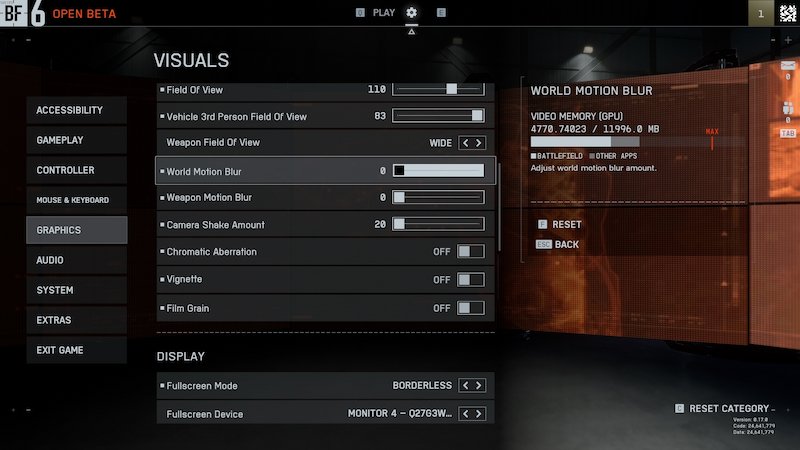
- FOV: Somewhere around 105–110
- Vehicle 3rd Person FOV: 83
- Weapon FOV: Wide
Motion Effects & Filters
- World Motion Blur: Off
- Weapon Motion Blur: Off
- Camera Shake: 20
- Chromatic Aberration: Off
- Vignette: Off
- Film Grain: Off
Switching these off does do a great deal for visibility. Particularly when playing MP, any kind of clarity can count more than you might realize.
Display Settings
Screen Mode and Frame Sync
- Fullscreen Mode: Go with Fullscreen or Borderless
- Refresh Rate: As high as your monitor allows
- Vertical Sync (V-Sync): Better to have it off
Fullscreen ensures your GPU is dedicated to the game. V-Sync may sound handy, but no, it introduces lag and slows down responsiveness at times.
Individual Graphics Options (Custom Quality Settings)
Texture & Geometry
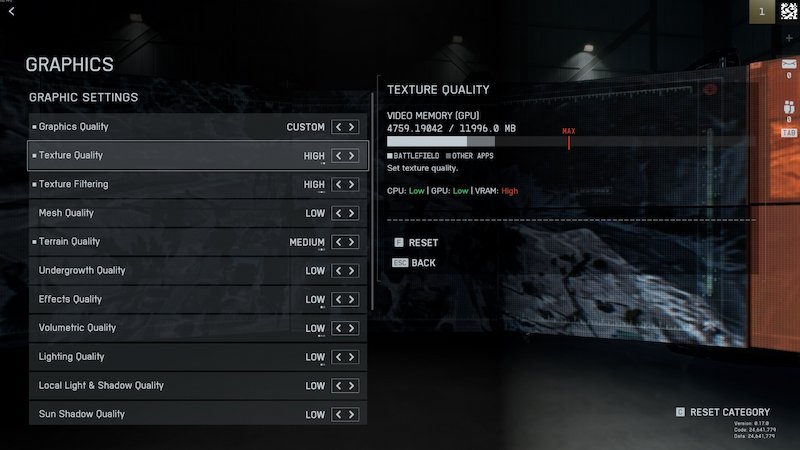
- Texture Quality: High
- Texture Filtering: High
- Mesh Quality: Low
- Terrain Quality: Medium
- Undergrowth Quality: Low
Lighting & Shadows
- Effects Quality: Low
- Volumetric Quality: Low
- Lighting Quality: Low
- Local Light Shadow Quality: Low
- Sun Shadow Quality: Low
- Shadow Filtering: PCF
Reflections & Post-Processing
- Reflection Quality: Low
- Screen Space Reflections: Off
- Post Processing Quality: Low
- Ambient Occlusion (AO): Off
- Global Illumination (GI): Off
- High Fidelity Object Amount: Medium
These can be very performance-intensive. To set lighting and shadows to low won’t break gameplay, but will conserve a lot of FPS.
Advanced Settings
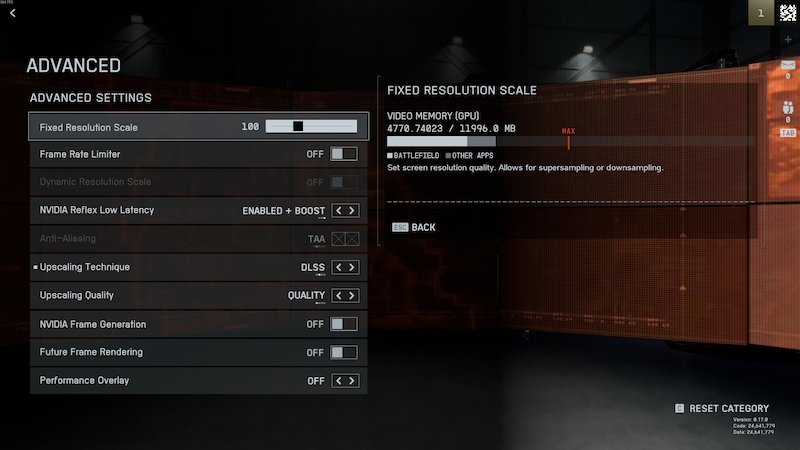
Frame Boost & Upscaling
- Nvidia Reflex Low Latency: Enabled + Boost
- DLSS / FSR: Use Ultra Performance
- Frame Generation: Best to keep Off
- Future Frame Rendering: Off
- Fixed Resolution Scaling: 100
- Frame Rate Limiter: Should match your monitor (120Hz, 144Hz, etc.)
- Performance Overlay: Keep On
Final Thoughts
Configuring Battlefield 6 correctly can improve gameplay. Not just for the cosmetics, but also for smoother control and responsiveness. Doesn’t matter whether you’re playing with mid-range or high-end hardware; these settings will allow everyone to have a stable and visually clean experience. So give it a shot, adjust accordingly, and own the battlefield the way you desire.